 |
 |
 |
 |
|
|
| Design |
| Domain Registration Domain Privacy Free Domain Name! Order/Transfer Domains Bulk Order/Transfer WhoIS |
| Accounts Domain Control Panel Hosting Panel VPS Panel Account Renewals Rebate Centre Referral Centre LiveHelp LiveChat |
Self Serve Webmail FAQs Tutorials Server Settings System Status Spam Control Contact Us |
| About Us eHosting.ca Contests No contests at this time JuditGueth.com Case Study About ehosting.ca Client Testimonials Why choose Us? Dedicated Server Backbones Press Releases Community Relations |
Contacts Contact Us Careers Thunderbird |
| New Signup Signup Now New Hosting and Domain Domain Registration Only Dedicated Server Renew Account Renew |
|
||||||||||||||||||||||||||||||||||||||
 |
|||
|
|||


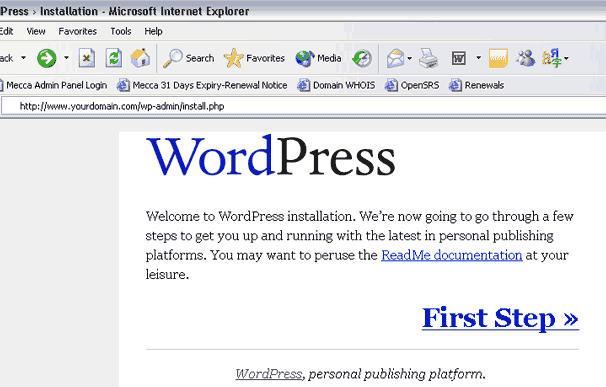
 WordPress Installation Tutorial